User guide
How to install NuPrint, print with it and fix common problems. For how the app behaves in more detail, see app details; for the command-line tool, see printer interaction.
Supported printers
- SC03h (lowercase, names starting
SC03h-): verified on Windows, macOS and Linux. - Experimental models have the same settings as the SC03h in the vendor's phone app. NuPrint shows them with an Experimental badge and asks you to confirm before you save one. If you try one, please share a diagnostics export and tell us whether the paper looked right.
- Everything else shows up as an unknown device, and NuPrint never prints to it.
Installing
Download the installer for your system from Releases.
| System | File |
|---|---|
| Windows 10/11 (x64) | NuPrint_<version>_x64-setup.exe, no admin rights needed |
| macOS 14+, Apple silicon | NuPrint_<version>_aarch64.dmg |
| macOS 14+, Intel | NuPrint_<version>_x64.dmg |
| Debian/Ubuntu (x64) | NuPrint_<version>_amd64.deb |
| Fedora/openSUSE (x64) | NuPrint-<version>-1.x86_64.rpm |
| Any other Linux (x64) | NuPrint_<version>_amd64.AppImage |
The installers aren't code-signed yet, so the first launch needs one extra step. On Windows, if SmartScreen warns about an unrecognised app, choose More info → Run anyway. On macOS, open System Settings → Privacy & Security and choose Open Anyway for NuPrint.
On Linux, NuPrint needs BlueZ 5.80 or newer (check with bluetoothctl --version), so Ubuntu 24.04 and older can't reach the printer. An AppImage needs no install: make it executable (chmod +x, or Allow executing as program in its properties) and open it. Whichever file you use, run these once so NuPrint can reach the printer (why):
sudo sed -i 's/^#\?Experimental = .*/Experimental = true/' /etc/bluetooth/main.conf
sudo systemctl restart bluetooth
Each release also has NuPrint Slint, a newer and less tested version of the same app. See app details.
Using the desktop app
What you're printing is on the left, and its paper preview is on the right with the print bar underneath. The toolbar has the printer button, Queue and Settings (Ctrl+, or ⌘,).
- Turn on the printer, load thermal paper and close any printer app on your phone.
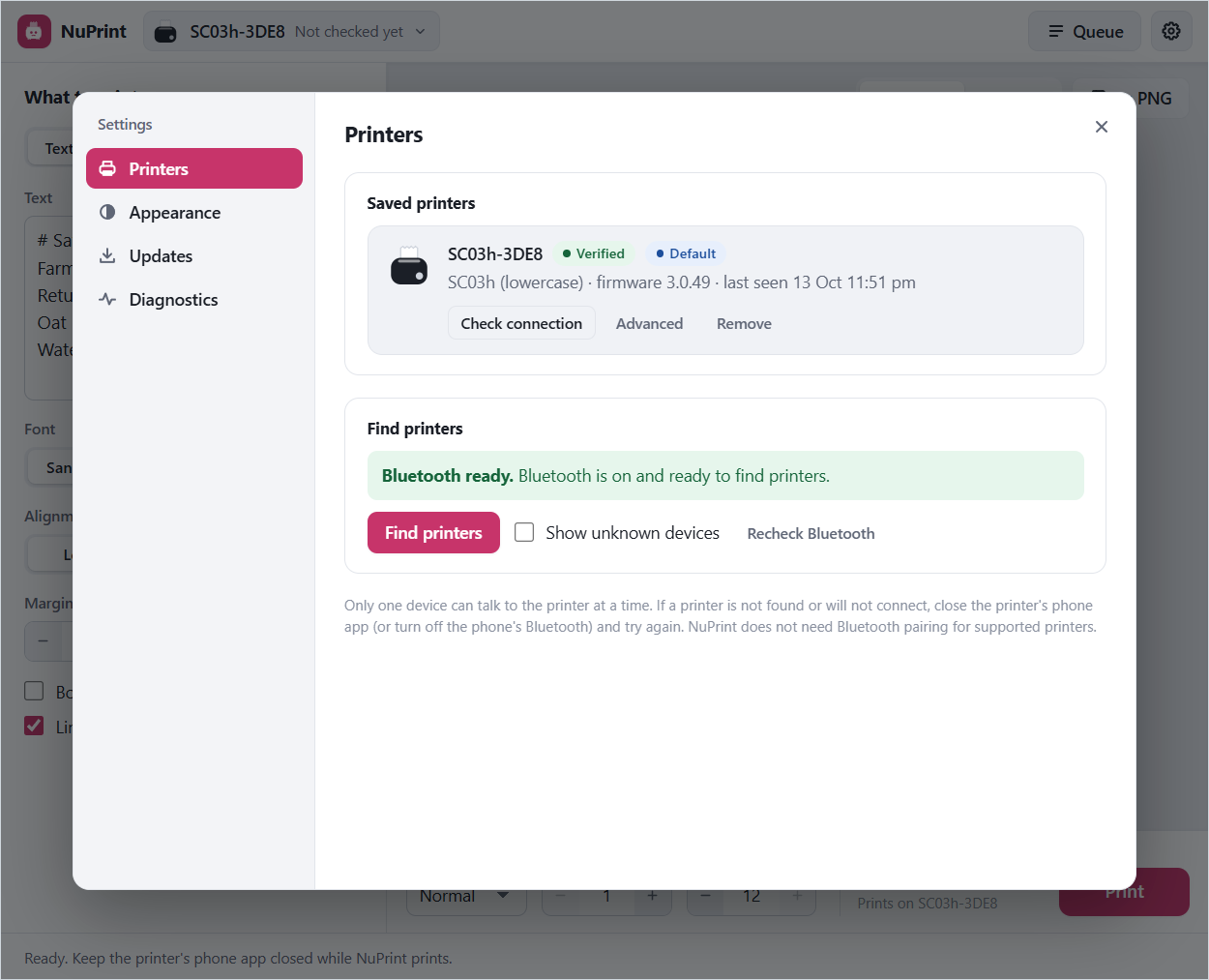
- Open the printer button and choose Find printers…, then press Save printer on your
SC03h-…. Check connection tests it without using paper. The printer's light shows green for ready, amber for a problem such as no paper, and red for no connection. If you save several printers, pick the one to print to from the same menu. - Write a note, or open a picture or one page of a PDF. The preview shows exactly what will print, with a millimetre ruler beside it.
- In the print bar, set darkness, copies and extra feed (0 to 12 mm), then press Print. The bar shows how much paper the job will use. Save as PNG (the save icon above the preview) saves the print as an image.
The queue
After you press Print, the status bar at the bottom shows how the job is going, with Cancel while it can still be cancelled. View queue opens the history, where you can print a waiting, failed or uncertain job again. Finished jobs stay in the history for 30 days; remove one there if you don't want its preview kept.
A job is uncertain when NuPrint can't tell whether it printed, for example if the app closed halfway through. NuPrint never resends it on its own: check the paper and print it again if you need to. If the queue shows Queue stopped, choose Restart NuPrint; your waiting jobs come back on hold until you resume them.
Advanced printer settings
Settings → Printers → Advanced lets you tune a printer's heat, speed and other values. Your changes apply only to that printer on this computer, and Reset to defaults undoes them. Print one short strip after each change, because a wrong value can waste paper.
Appearance
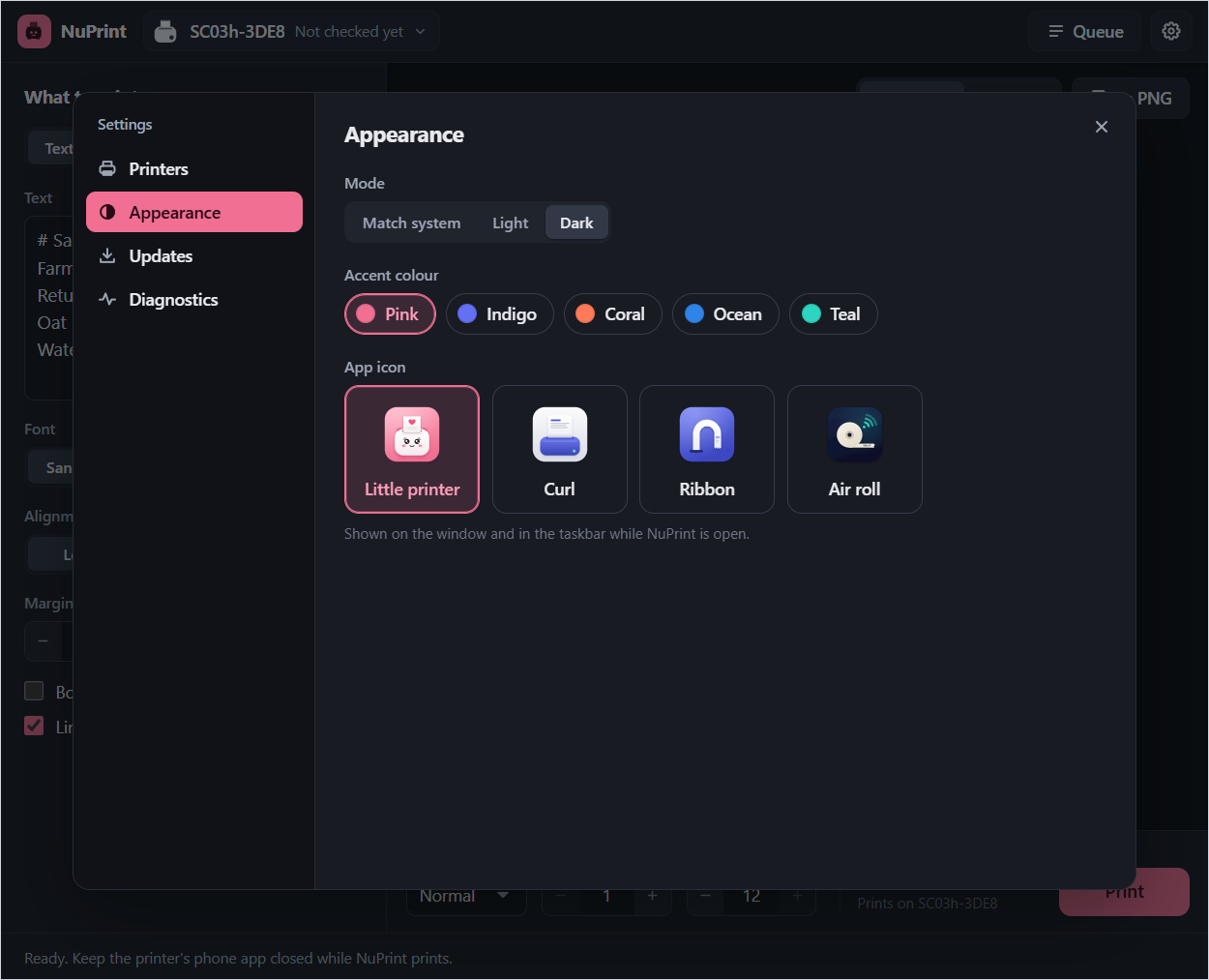
Settings → Appearance sets light or dark mode (or matches the system), the accent colour (pink, indigo, coral, ocean or teal) and the app icon (little printer, curl, ribbon or air roll).
Updates
Settings → Updates checks for a newer NuPrint when you press Check for updates. You can also turn on Check for updates when NuPrint starts. A check sends nothing about you, your printers or your documents. When there's a new release, Install and restart installs it and reopens NuPrint, keeping your waiting jobs. It isn't available while a job is printing.
Diagnostics
Settings → Diagnostics exports a report to attach to a bug or printer report. Device names, addresses and job titles are hidden unless you choose to include them, and your documents are never uploaded.
Troubleshooting
- Not found: check that Bluetooth is on, turn the printer off and on, keep it close and close any phone printer app that may be holding the connection.
- Connected, but no status: turn the printer off and on and check the connection again. On Windows, removing an old Bluetooth pairing for the printer can help.
- Blank paper: the thermal side of the paper must face the print head.
- Stops halfway: check the paper, the lid and the charge. After you cancel, a few rows already sent may still print.
- Linux: if NuPrint says it tried Classic Bluetooth, run the two commands under Installing. NuPrint doesn't need pairing; if you paired the printer in Bluetooth settings, choose Forget.
- macOS: the first time you press Find printers, macOS asks whether NuPrint may use Bluetooth; choose Allow. If you refused, Settings → Printers offers Open Bluetooth settings: turn NuPrint on there, then find printers again.